On this page, you can find the external ticketing system integrations we support. Here you can choose between an integration with c-entron and TANNS via woasi from ideevo GmbH, Autotask PSA from Datto, and NinjaOne.
By connecting to the ticketing system Autotask PSA from Datto, you can manage and work through suggested actions directly in Autotask.
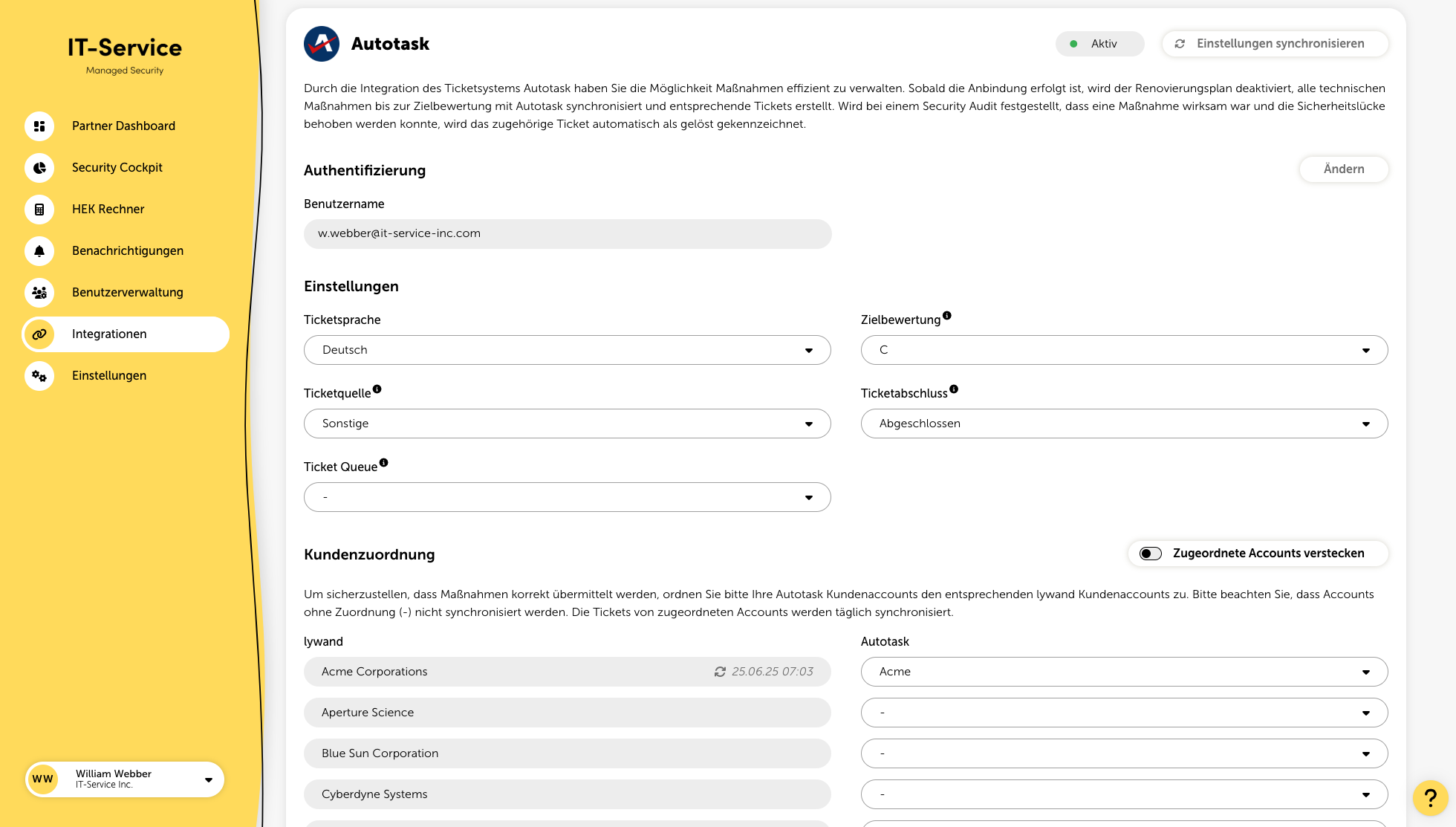
Once the setup is done, all actions are synchronized with Autotask and corresponding tickets are created.
If a security audit shows that an action was effective and the security vulnerability could be fixed, the related ticket is automatically marked as resolved.
To set up a successful integration, you need to create an API user in Autotask.
In Autotask, in the "API Tracking Identifier" field, select the option "Custom".
Specify the name of the internal integration (e.g. "lywand").
Enter the generated tracking identifier together with the username and password in the corresponding fields in the platform.
You can find a detailed guide from Autotask here.
Ticket language
Select the language in which the tickets should be created.
Target rating
With the target rating you can define up to which rating measures should be synchronized. For example, if you select “C”, all required measures that lead to rating “C” will be synchronized.
Ticket source
To be able to store lywand as a ticket source, you first have to set up the new ticket source in Autotask and then select it here. Here you can find a guide for this. If the source is not displayed, you can synchronize the Autotask settings at the top right.
Ticket completion
Here you can select the desired status after the ticket has been successfully implemented.
To make sure that measures are transmitted correctly, assign your Autotask customer accounts to the corresponding lywand customer accounts. Accounts without an assignment (-) are not synchronized. Tickets from assigned accounts are synchronized daily.
Thanks to woasi lywand can be integrated directly into the c-entron service board. This way, vulnerability notifications are captured automatically, forwarded in a targeted way, and the manual effort is reduced to a minimum. This feature offers the following options:
Automated ticket creation
Custom categories & assignments
Optimized process automation
You can get more information on how to use the c-enton ticketing integration directly from woasi.
By integrating with NinjaOne, vulnerabilities from Lywand can be made visible directly in the RMM at device level and handled operationally on the affected endpoints.
This feature offers the following options:
Synchronization of vulnerabilities at device level
Transfer of device names and CVE information
Flexible filtering of the data to be synchronized
Once the setup is done, the vulnerability information is transferred to NinjaOne.
To successfully connect to NinjaOne, an API user must be created.
In the administration settings of NinjaOne, create a new client application under API applications.
In the “Application platform” field, select the “API services (machine-to-machine)” option.
Enter a meaningful name and the required redirect URIs.
Select the required API permissions:
Scope: Monitor, manage
Allowed grant types: Client credentials, refresh tokens
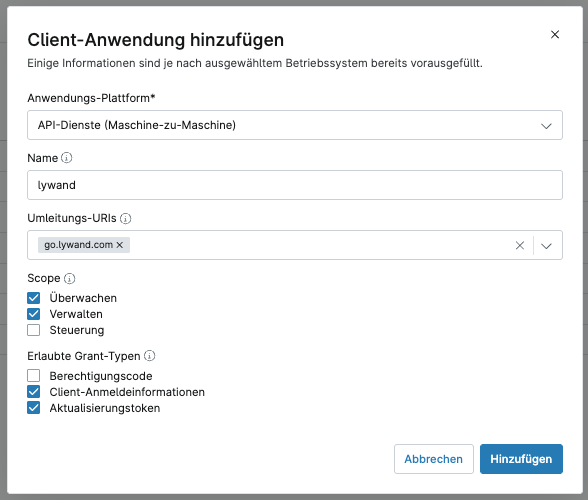
Add the application and, if necessary, verify it via MFA.
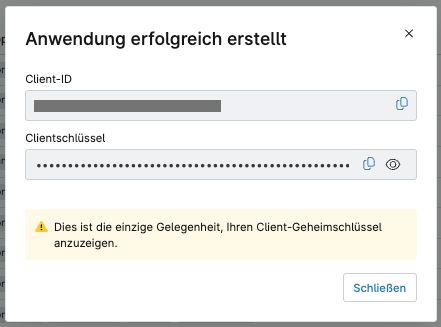
Copy the generated authentication data and enter it in Lywand in the NinjaOne integration to establish the connection.
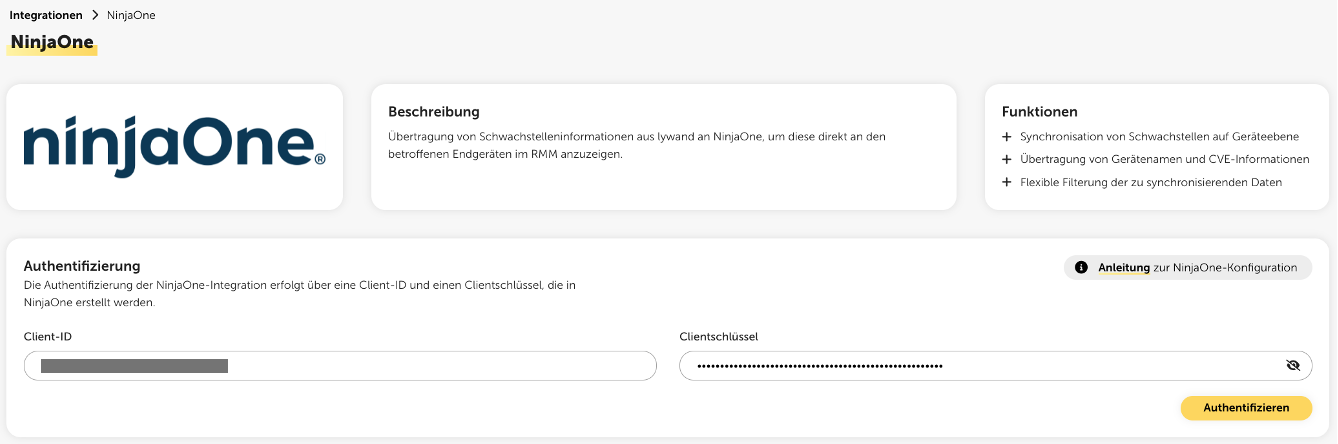
To successfully set up synchronization of vulnerability information, the vulnerability importer in NinjaOne has to be activated and a dedicated scan group has to be created for it. The vulnerabilities are synchronized automatically as soon as changes are made to the settings. Otherwise, synchronization takes place regularly every five hours.
In the administration settings of NinjaOne, go to the installed applications and open the vulnerability importer.
Create a new scan group that will be used for synchronizing the vulnerabilities.
Give the scan group a meaningful name and select “Other” in the “Scanning provider” field.
Then assign a suitable provider name (e.g. "Lywand").
Download the sample CSV file here and upload it to NinjaOne. No changes to the file are required.
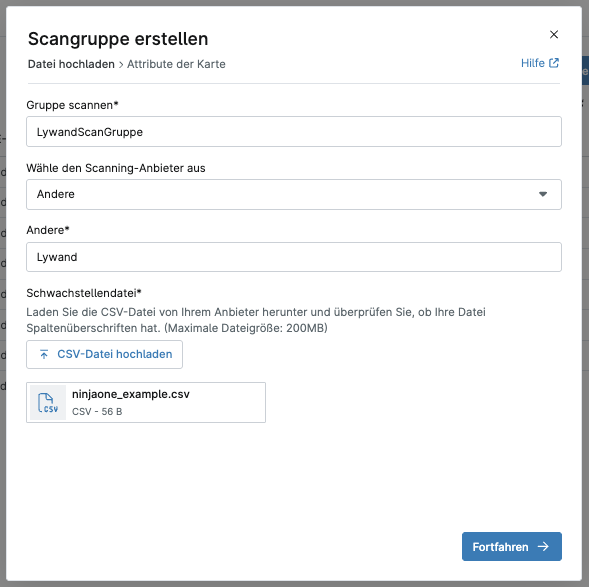
For assigning the devices, you can either use the hostname or the MAC address. The selected device ID type must be configured identically in NinjaOne and Lywand so that the vulnerabilities can be correctly assigned to the devices.
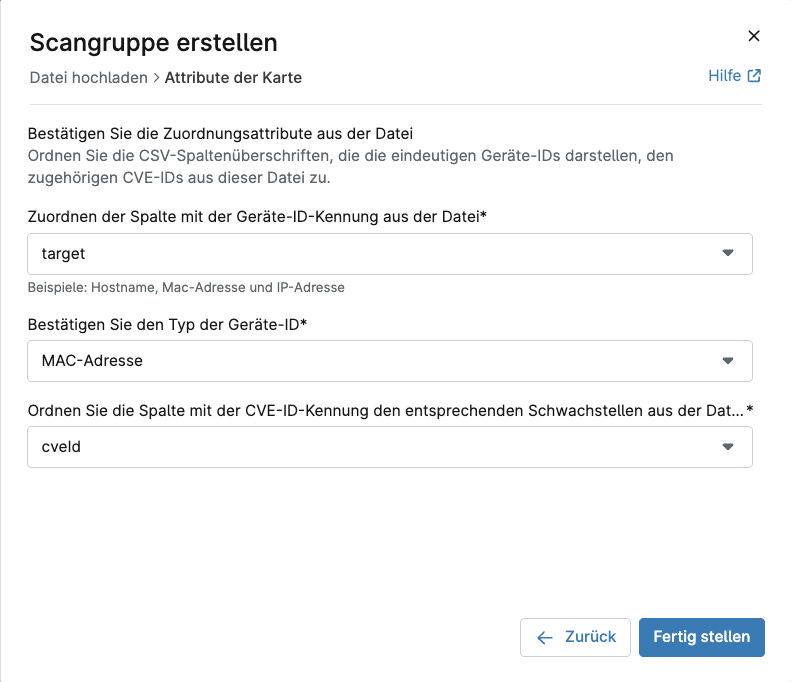
Option 1: Assignment via MAC address
Then select the following mapping attributes from the file:
Column with the device ID identifier: target
Type of device ID: MAC address
Column with the CVE ID identifier: cveId
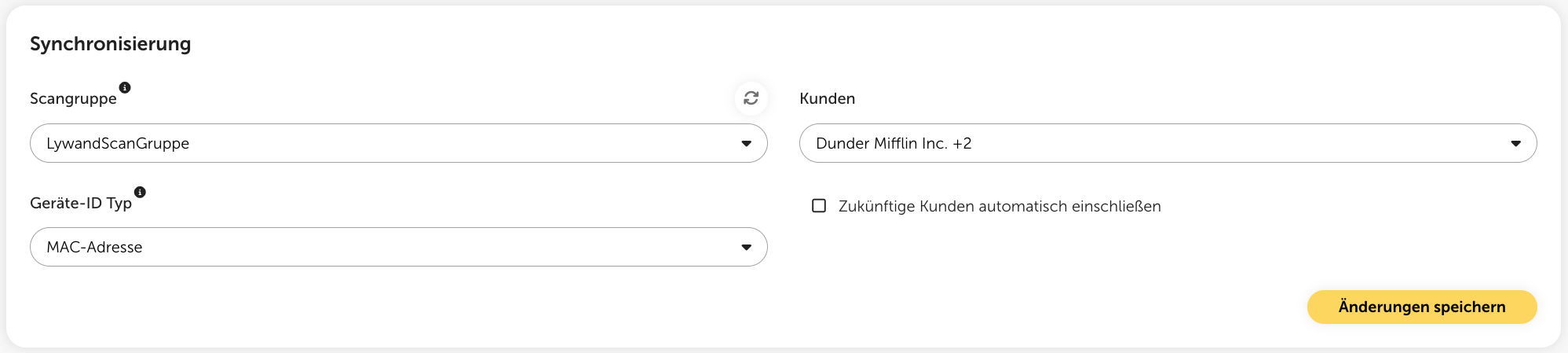
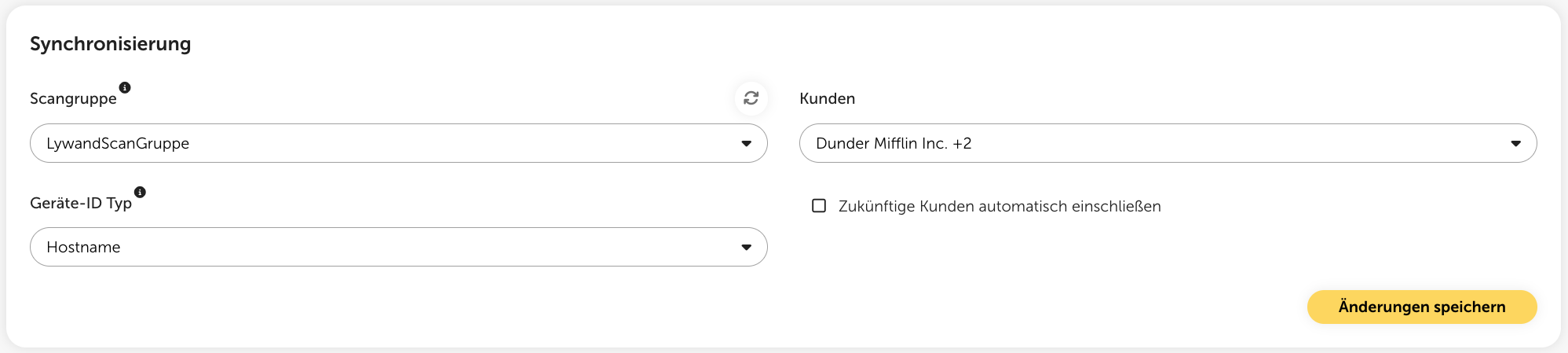
Sync the created scan group in Lywand via the resync button.
Select the desired scan group, the device ID type "MAC address” as well as the customers whose vulnerabilities should be synced, and save the changes.

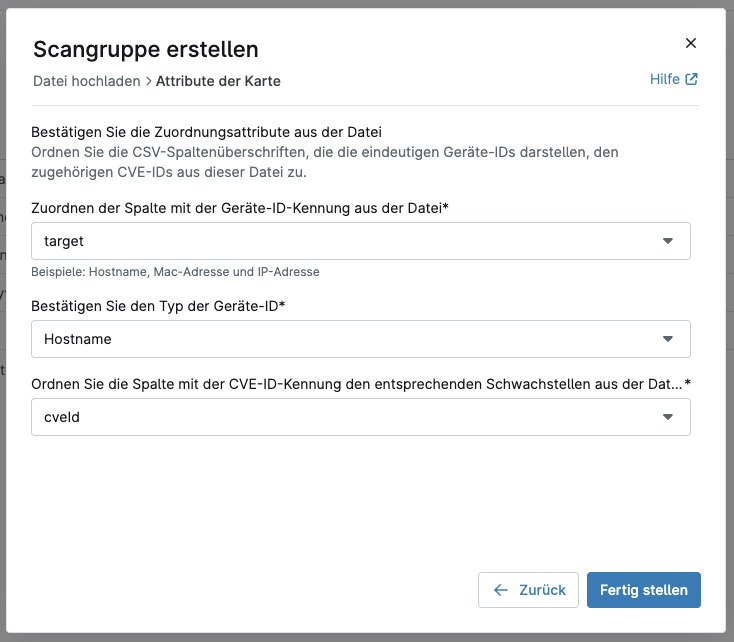
Option 2: Assignment via hostname
Then select the following mapping attributes from the file:
Column with the device ID identifier: target
Type of device ID: Hostname
Column with the CVE ID identifier: cveId
Synchronize the created scan group in Lywand via the resync button.
Select the desired scan group, the device ID type "Hostname” as well as the customers whose vulnerabilities should be synchronized, and save the changes.
With optional filtering, you can decide which vulnerabilities from Lywand are sent to NinjaOne. You can filter by device type, managed status, risk level or asset value to sync, for example, only critical and high vulnerabilities on managed endpoints.

With the help of woasi vulnerabilities can be read out from lywand and categorized according to your own set of rules. By connecting to TANNS, tickets can be generated fully automatically from this. This feature offers the following options:
Fully automated & individual ticket creation according to your own set of rules
Definition of individual categories, including assignments and due dates
Automation of routine processes
You can get more information about using the TANNS ticketing integration directly from woasi.