With Auto Healing, you can automatically fix up to 80% of the vulnerabilities found internally. This way, you can work through the bulk of the found vulnerabilities much faster and more efficiently. There are no extra costs. The functionality is included in the current license price.
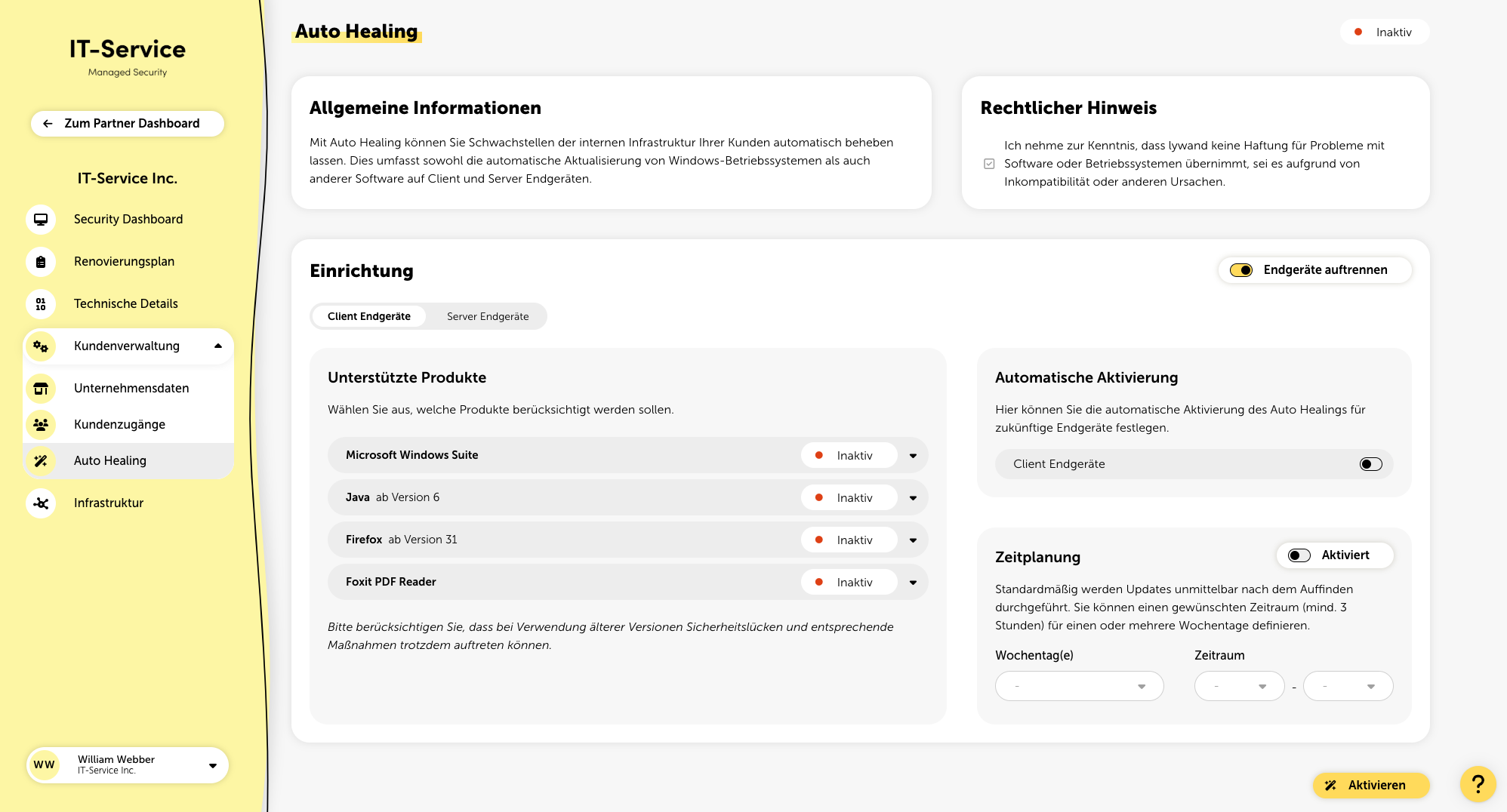
Auto Healing can be used separately for each customer in the platform. Switch to the specific customer and go to the menu item: “Customer Management > Auto Healing”.
Before you start activating Auto Healing, please note that lywand needs access to the following URLs:
Java
https://javadl.oracle.com
https://javadl-esd-secure.oracle.com
https://download.oracle.com
Firefox
https://download.mozilla.org
https://product-details.mozilla.org
Foxit
https://www.foxit.com
https://cdn01.foxitsoftware.com
Click the "Split devices" switch at the top right to set up different settings for client and server devices. This lets you turn on things like automatic Windows updates for client devices but keep them off for servers.
You can also turn on auto-activation of Auto Healing for future devices, for example for clients, while turning it off for servers. Plus, you can set up different times for when these things happen.
If you undo the split, any changes you made will be lost.
Auto Healing is available for the following applications:
Microsoft Windows Suite
Java
Firefox
Foxit PDF Reader
You'll find more info about the applications when you expand them. Keep in mind that using older versions can still cause security gaps and related measures might be needed.
Depending on the product, there are different configuration options. Down below you'll find explanations for each of the switches.
Install updates
Turn on “Install updates” if you want the product to be patched automatically.
Minor updates
Turn on “Minor updates” if you need to make sure compatibility is given.
Major updates
Only allow “Major updates” when you’re sure that the devices can handle them.
Force quit
You can use the “Force quit” option if running programs can't be updated. But remember, this won't relaunch the program.
Here you can set up the automatic activation of Auto Healing for future devices. This means all devices you add after turning it on will automatically have Auto Healing enabled.
You can choose which target types should be included (client devices and/or server devices).
After automatic activation of devices, there's also an option to instantly activate all existing targets.
Set when Auto Healing should take place. By default, updates happen right after they're detected. You can set a specific period (at least 3 hours) for one or more weekdays. Pick time frames when you know the devices will be turned on.

To enable Auto Healing, you need to accept the legal notice. So, check the corresponding box to proceed.
With Auto Healing enabled, you'll see an additional chart about vulnerabilities in the Security Dashboard. Here you can see how many vulnerabilities Auto Healing has already fixed automatically.
There's also a new “Auto Healing” tab for each device under the menu 'Technical Details > Check Insights.' Here you'll find a list of activities that were performed.
To the right of “Last check” you'll also see when the last update search was performed.