With the renovation plan, you can schedule measures and manage their implementation. In this menu item, you also have the option to create and edit multiple renovation plans. Below the currently selected renovation plan, you’ll also find a list of all available measures. In contrast to the Renovation Plan in the Security Cockpit, only renovation plans and measures for the current customer can be managed here.
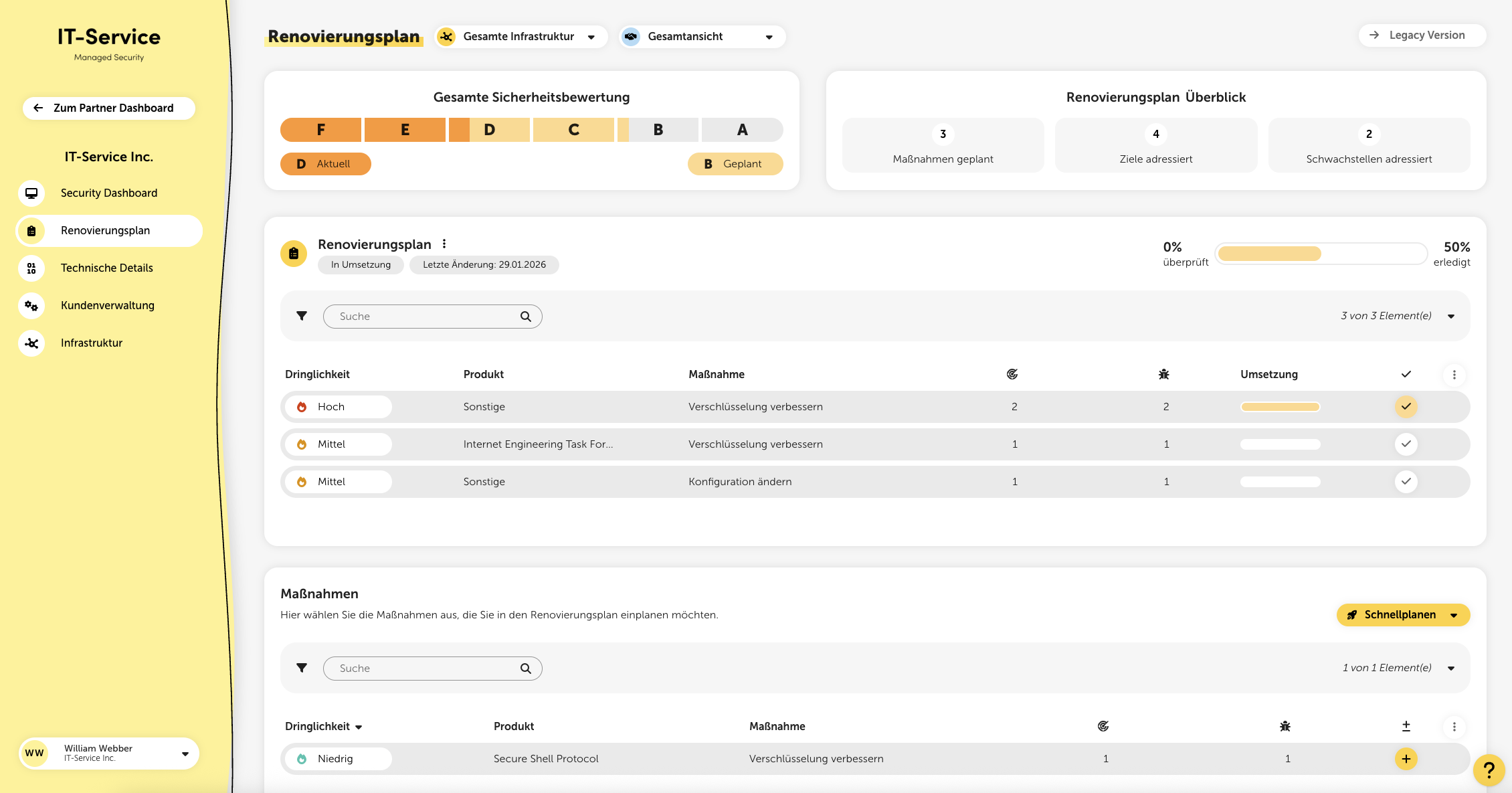
First, you’ll see your current and planned security assessment here. The planned assessment is based on the potential of all currently planned measures. Right next to it, you’ll get an overview of important metrics of the currently selected renovation plan.
In the renovation plan, you can directly plan measures for the current customer. These are automatically created based on the vulnerabilities found in the checks. You can view and manage the planned measures and their degree of implementation here. Using the three-dot menu you can also create and manage multiple renovation plans.

Measures can either be added individually via the measures table or using the “Quick planning” function. To remove measures from the currently selected renovation plan, choose the “Start planning” option. By clicking the minus button at the end of each row, you can remove measures again.

You can manually mark already implemented measures in the renovation plan as “completed” at any time. To do this, click the button with the checkmark. Measures that are recognized as completed by one of our checks are automatically displayed with a green double checkmark.
It can happen that the implementation of a measure can’t be detected automatically, for example with the vulnerability "Compromised user data". For this case, an extended workflow was introduced. As soon as the measure is checked off, the underlying vulnerabilities are manually marked as completed, removed from the list, and won’t show up again even with a new scan. If, for example, new compromised user passwords become known, a new vulnerability is created and the measure for it can be planned again.
Below the renovation plan you’ll find a list of all measures for the customer, sorted by urgency. The urgency is calculated from the sum of all risk values.
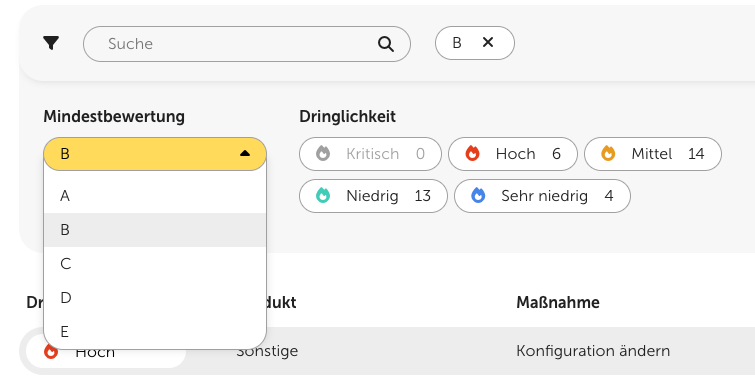
Measure Details & Detailed Breakdowns
With one click on the name of the measure, the detail view opens, where you’ll find a detailed description of the measure as well as a step-by-step guide with helpful links for implementation.
In addition, the table shows for each measure how many goals are affected and how many vulnerabilities are addressed by the measure. By clicking on the corresponding metric, you’ll also see detailed breakdowns of this.
With one click on the plus button at the end of each row, you can add measures to the currently selected renovation plan. Please remember to save the renovation plan by clicking the corresponding button after adding measures.

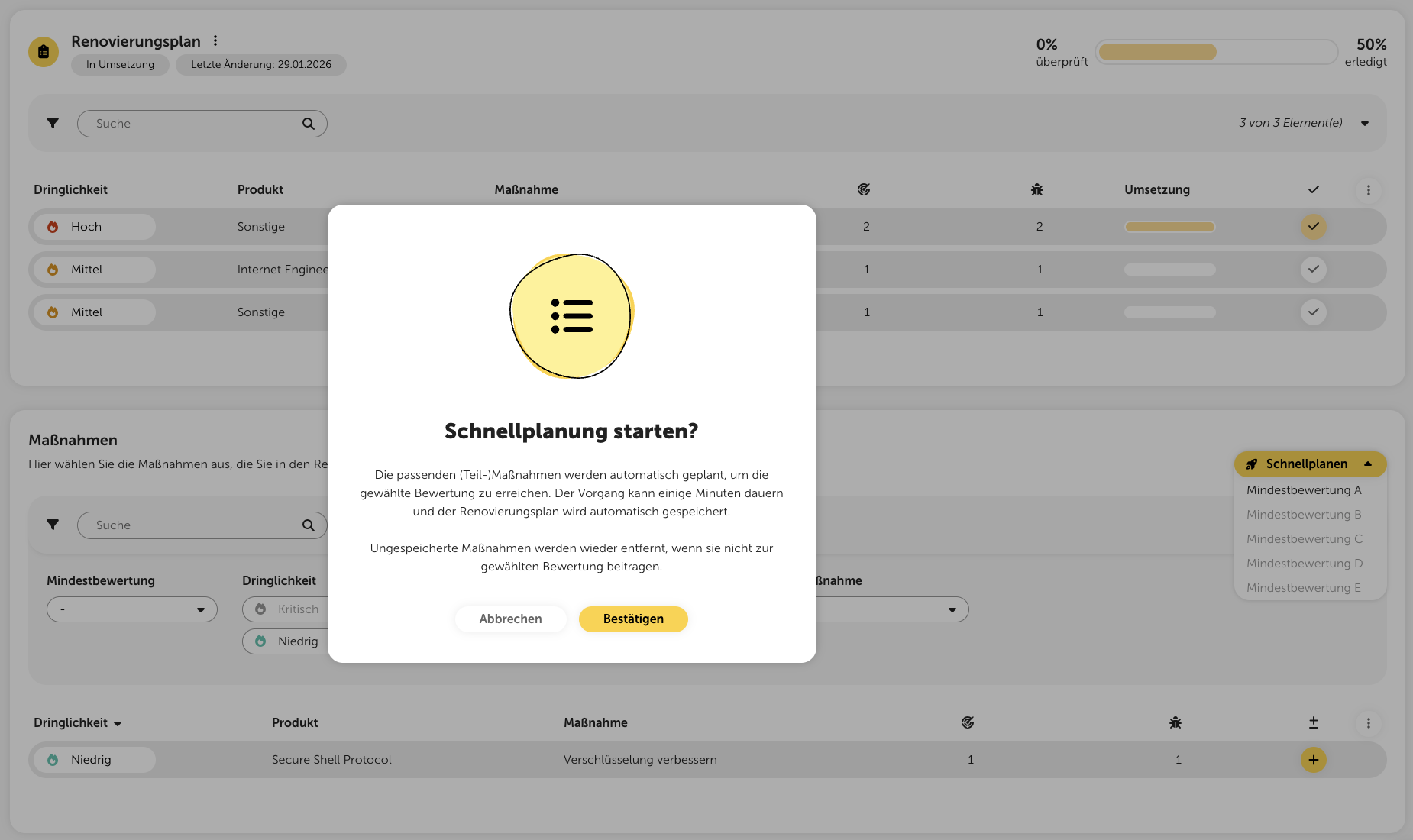
At the top of the measures table, you’ll also find the “Quick planning” feature. With it, you can have measures automatically planned so that after implementation you reach a certain rating level.
In both the renovation plan and the measures table, you can export the underlying data using a CSV file. To do this, click the three-dot menu in the header of the respective table and select “Download entries”.