The renovation plan is used to plan and manage measures directly on the platform. You can also export the plan with the described measures, print it out, and use it as a checklist.
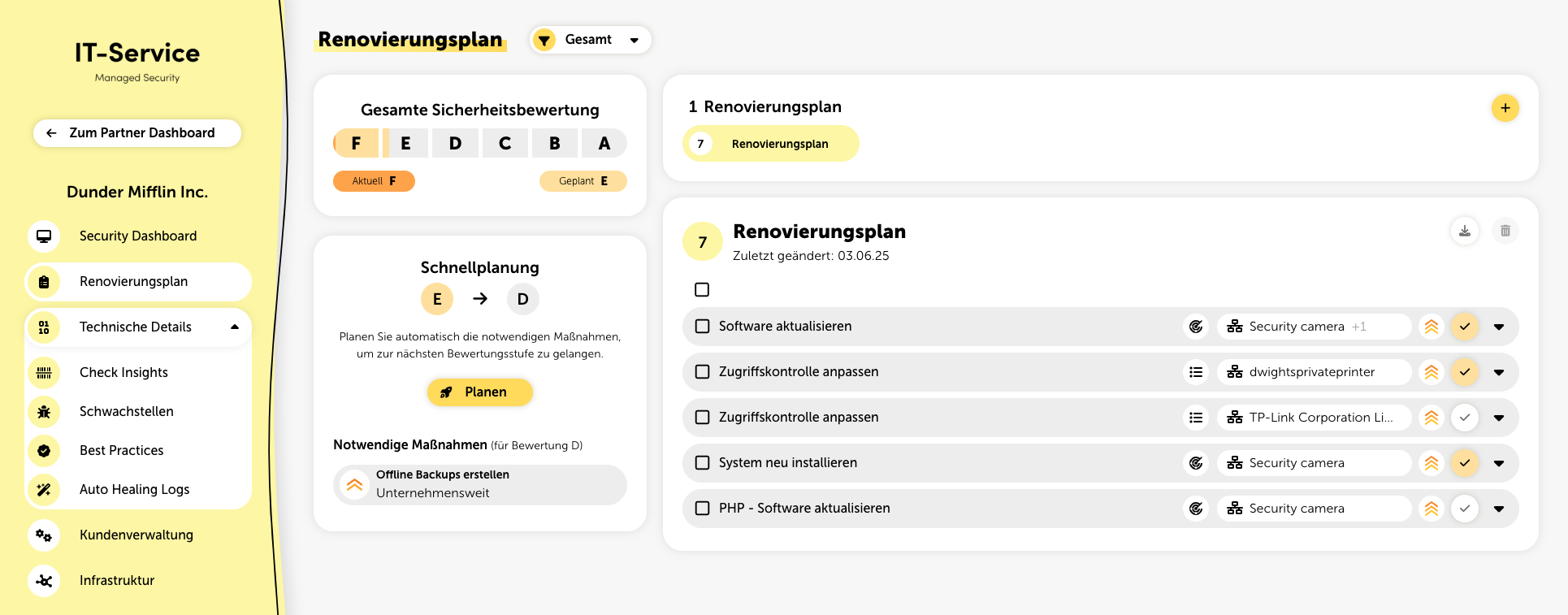
A scale at the top left shows the current overall score as well as the score you can reach with the planned measures.
With quick planning, all the measures needed to reach the next higher score are automatically added to the renovation plan. This means the weaknesses with the highest risk are planned first.
There's also an overview of all created plans. You can create new plans using the plus button. To rename a renovation plan, click its name in the overview. A pencil icon shows up when you hover over it.
At the top level you’ll see the title, the type of grouping (measure or target group), and which targets the measure affects. You’ll also see the impact, which is rated as low, medium, or high. The measures are automatically sorted by their impact.
If you click on a measure, it will expand. You’ll get more info such as a description of the measure and why it’s necessary. Depending on the grouping type, you’ll either see all the affected targets listed or the individual measures.
For technical details, click on “show more”. Here you’ll find a list of the individual vulnerabilities that this measure covers. If you click on a vulnerability, you’ll be taken to the Vulnerability Details page.
The renovation plan works like a to-do list to help you carry out the measures. Once you've finished a task, you can check it off in the right line.
In the next security check, lywand will verify if your completed measure is working and if the security holes got fixed. If it is, the field turns green and you’ll see two checkmarks.
Sometimes, it’s not possible to automatically spot if something’s been done, like with the security issue "Compromised user data". For this, there’s a more advanced workflow. As soon as this step is checked off, the underlying security issues get marked as done manually, get removed from the list, and won’t show up again in the next scan.
If, for example, new compromised user passwords pop up, a new issue shows and you can add this step again.
At the top right of each renovation plan, you'll find the option to download the plan along with the explained implementations. In the same spot, you can also delete a renovation plan.