After logging in, you land right in the Partner Dashboard. Here you'll find an overview of all your customers along with the most important metrics for each one. With just one click, you can switch to any customer. Above this customer overview, you can also see what phase or partner level you're currently in. Next to that, you'll find info across all customers, like the total number of targets and vulnerabilities.
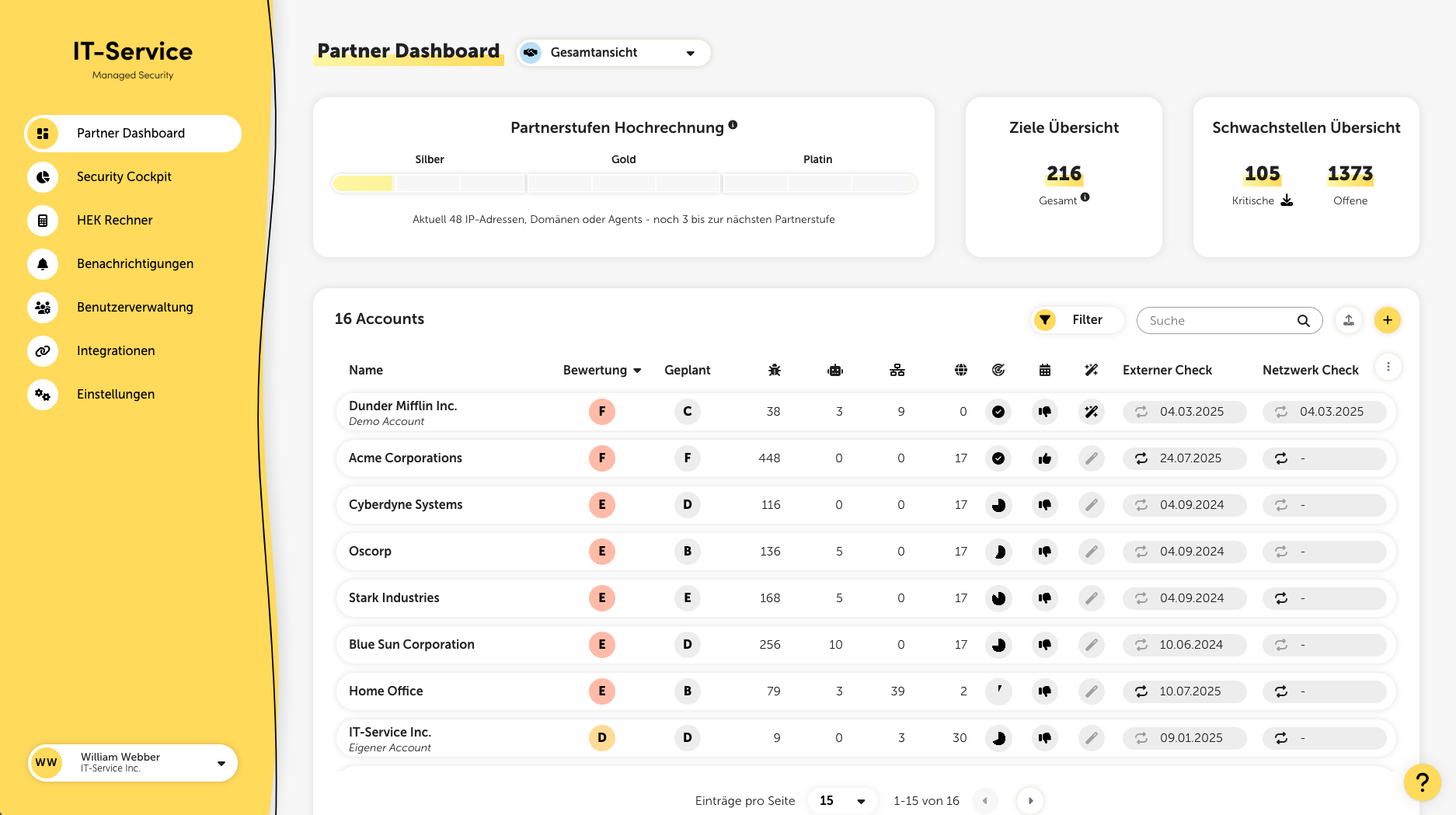
At the very top of the page, you can switch between the overall view and the display of your Managed Services. The setting you choose stays saved in your browser all across the platform and affects relevant metrics like security rating or found vulnerabilities.
If you switch to a customer while the Managed Services (or Unmanaged Services) view is active, you'll see an indicator right next to the customer name.
Here you'll see what phase or partner level you're currently in. If you're in the test phase, you'll see the start and end date, as well as the conditions.
If you've already finished your test phase, instead you'll see your partner level forecast right in the same spot. Here you can see which level you're currently at and how many targets are left to reach the next level.
The projection is based on:
Connected end devices
Completed scans of IP addresses & domains
Scheduled scans of IP addresses & domains
Here you can see the total number of targets for your customers (domains, IP addresses, email addresses, client and server devices as well as network devices).

The vulnerability overview is just as front-and-center on the partner dashboard. Here you’ll get a quick look at how many vulnerabilities are critical (and should be fixed fast), plus the total number of open vulnerabilities.
Vulnerabilities Bulk Download
Click the download arrow to export the critical vulnerabilities or all vulnerabilities for all customers as a CSV file.
Lywand is multi-tenant capable and makes it easy to manage your customers. Using the plus button at the top of the customer table, you can add a new customer.
You can also add multiple customers at once. Just add your customers' key data into the ready-made template provided in the 'Customers Bulk Upload' view, and upload the CSV file. You’ll find the button to jump to this view at the top of the customer table.
We’ve prepared a template you can use to send your customers a Permission to Attack including scan preparation. All you have to do is fill in the empty fields.
You can also filter the list of displayed accounts. If you click on the "Filter" button, a corresponding slide-in will open on the right side, where you can filter your customers by the following parameters:
Here, you can filter the displayed accounts by current and planned security rating.
Vulnerabilities by criticality
Number of internal agent targets
Number of internal network targets
Number of external targets
Choose whether you only want to see the accounts with Auto Healing turned on or off. By default, both are shown.
You can also hide your own or the demo account “Dunder Mifflin Inc.” from the list.