HyperV host available
HyperV VM storage and network for the gateway available
HyperV Manager set up and connected to HyperV host
Gateway image (ZIP) downloaded and available on HyperV host!
→ see Knowledge Base entry for Internal (Network)
1) Log in to the HyperV host
2) Create a new VM via “Import Virtual Machine”
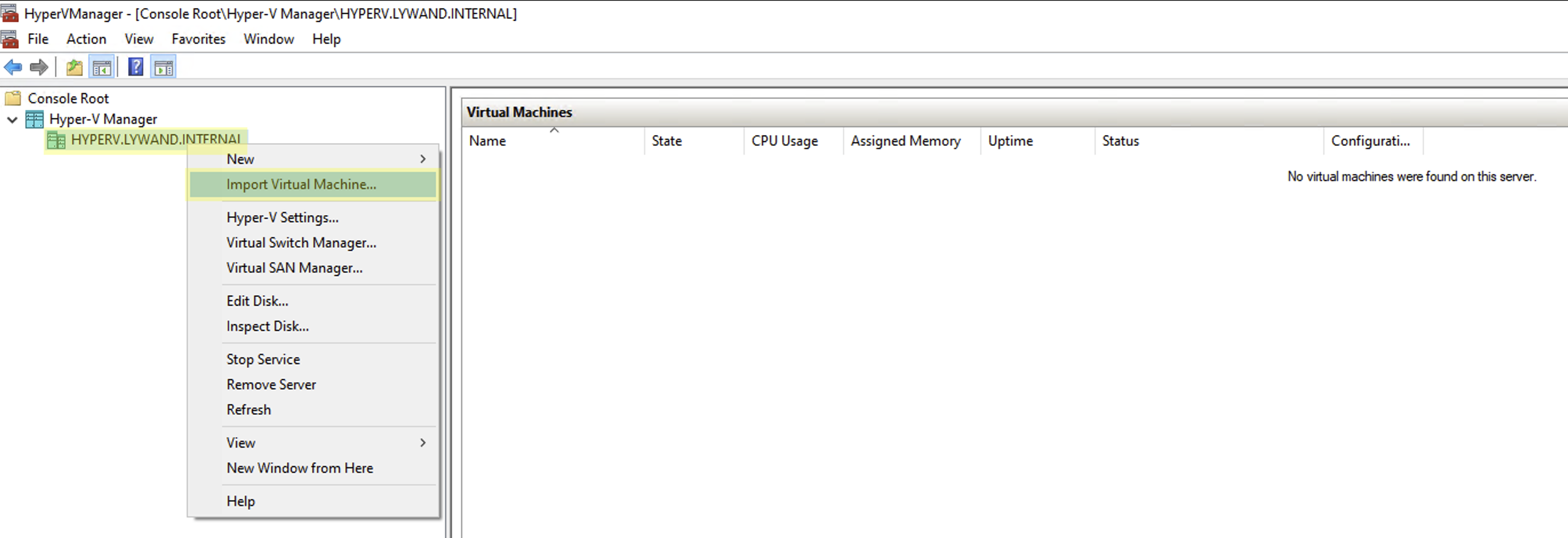
New VM
3) Click “Next”
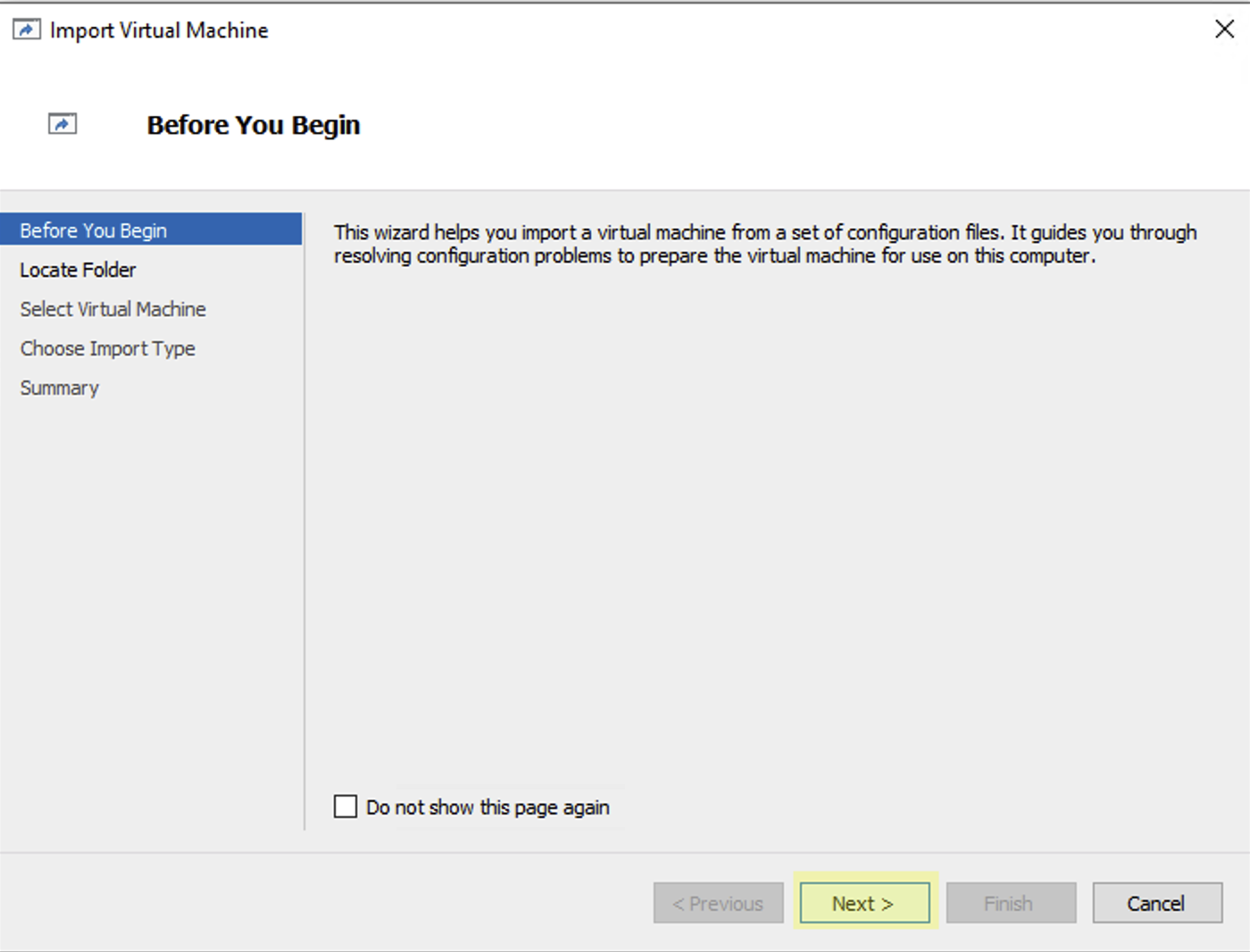
Start wizard
4) Specify folder path to the ZIP image
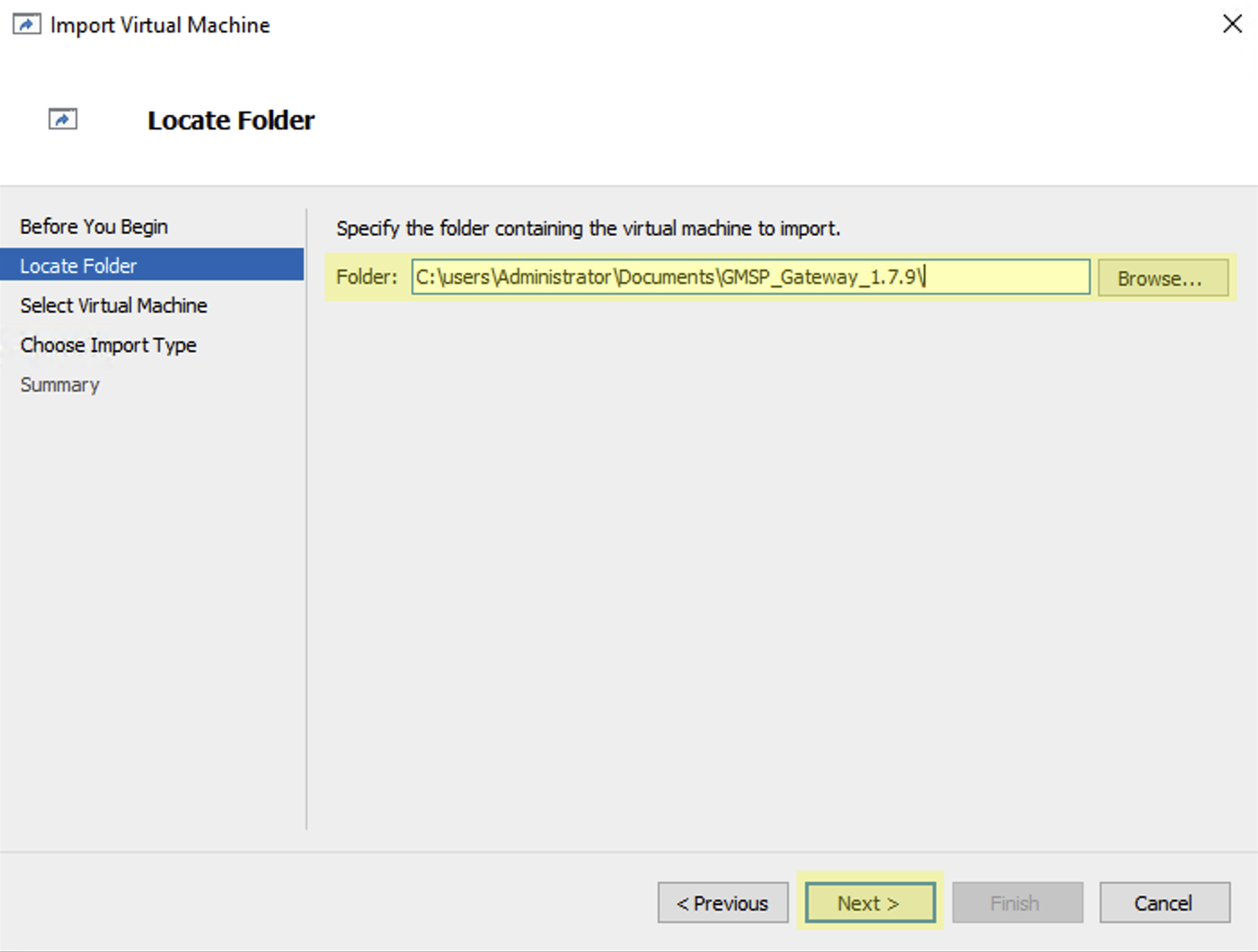
Select image folder

5) Virtual machine should be automatically detected
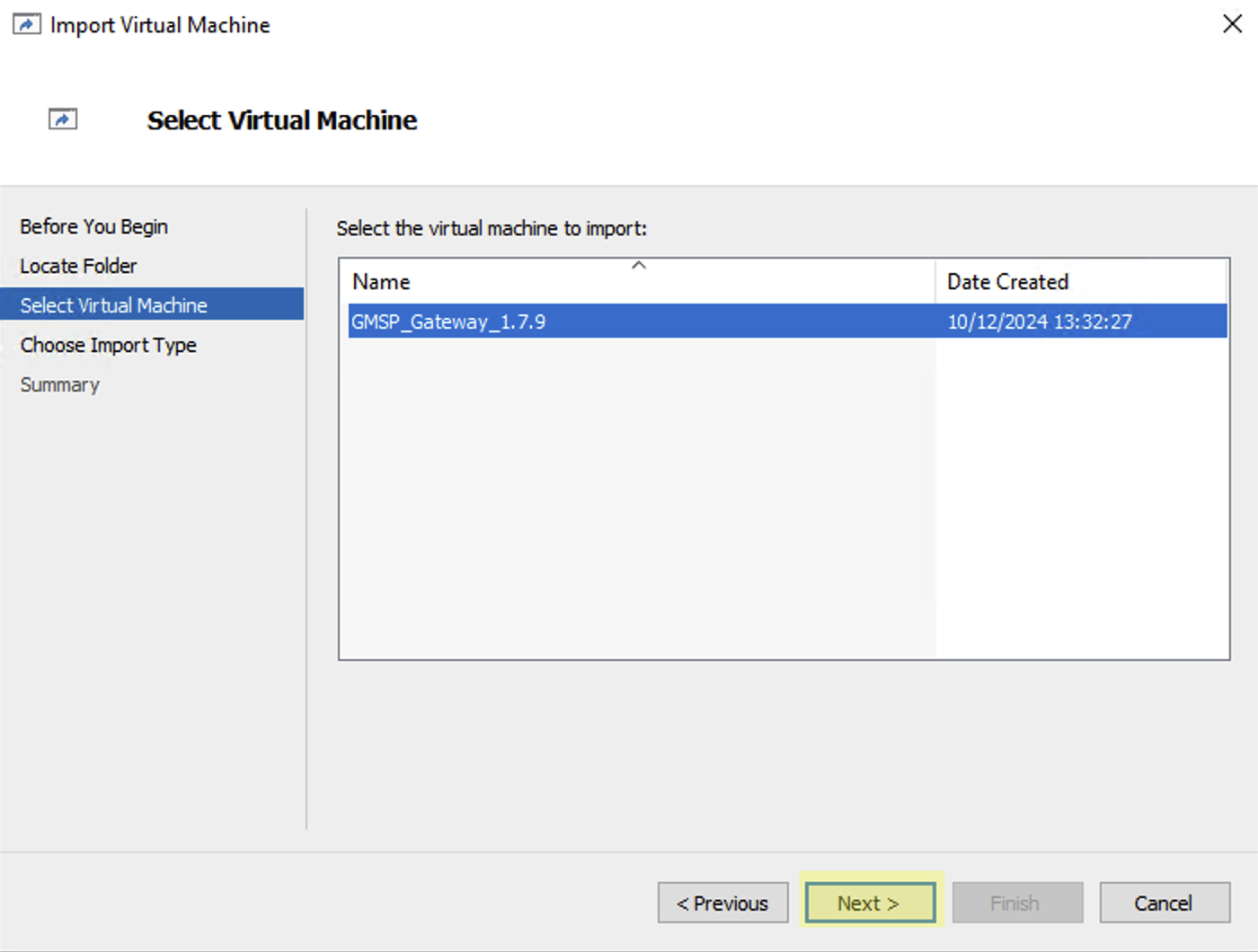
VM is detected
6) Select the desired import type (recommended option marked)
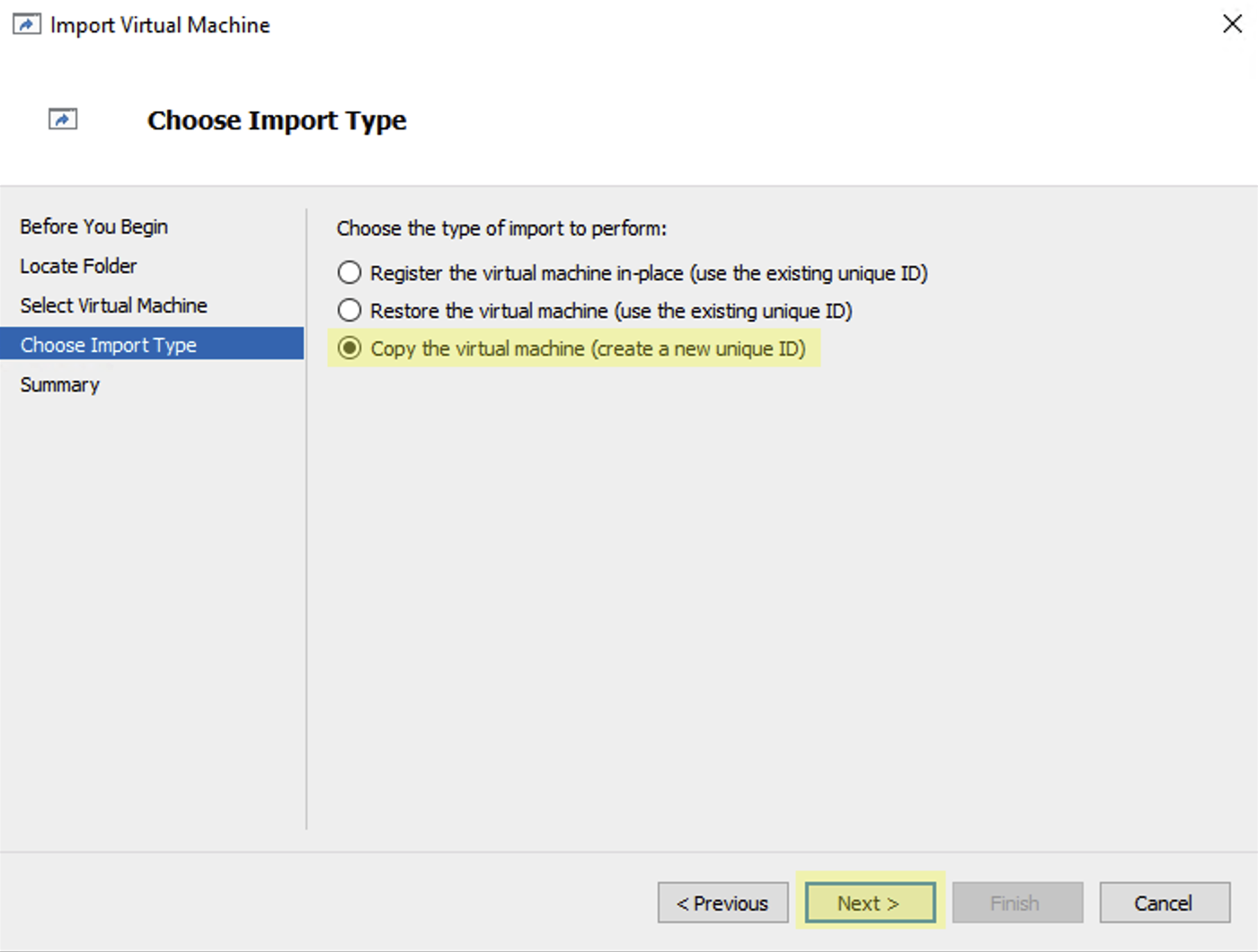
Select Import-Art “Copy”
7) Select the desired storage location for additional data of this VM
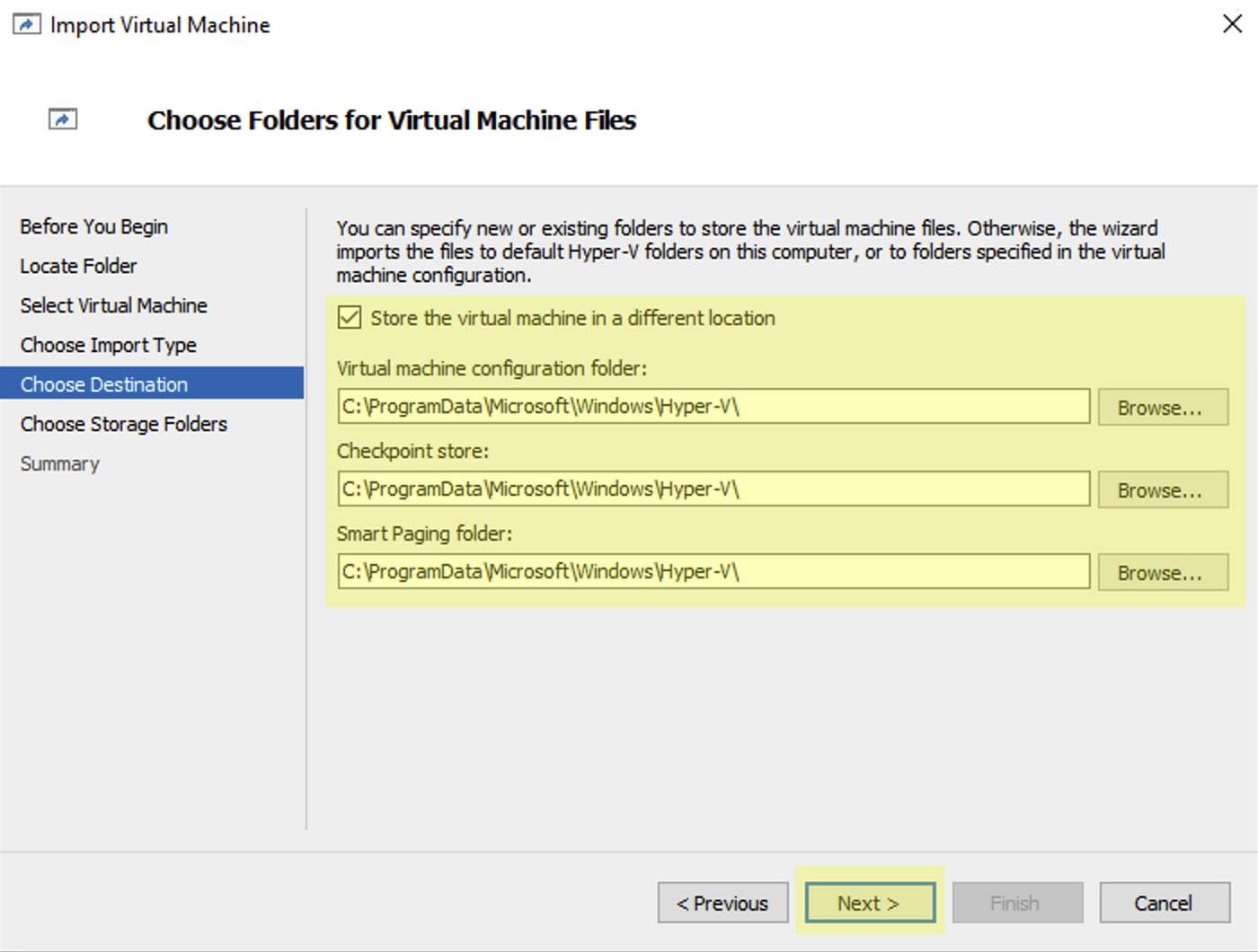
Select the desired VM storage location for additional data
8) Select the desired network for this VM
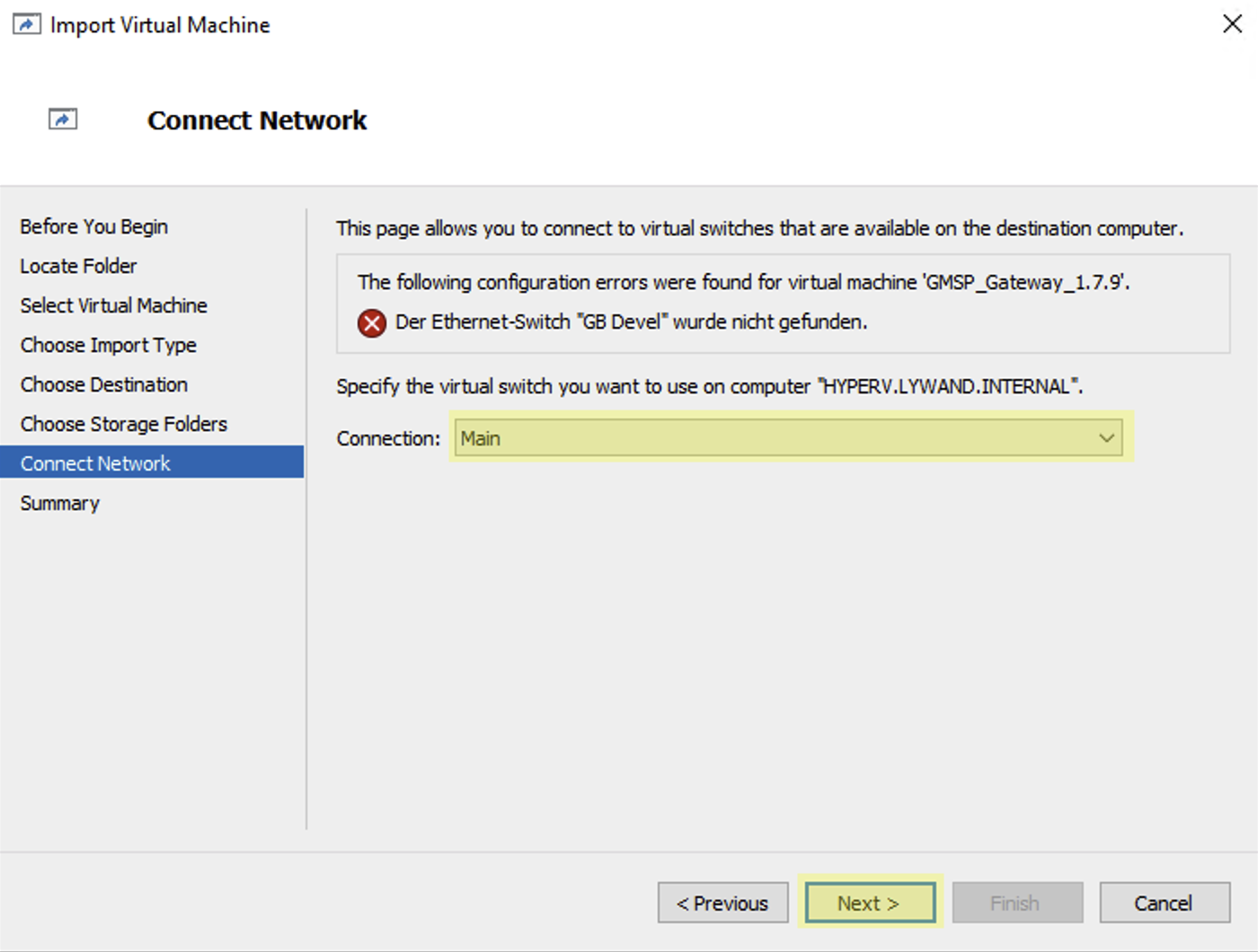
Select the desired VM network
9) Select the desired disk storage location for this VM
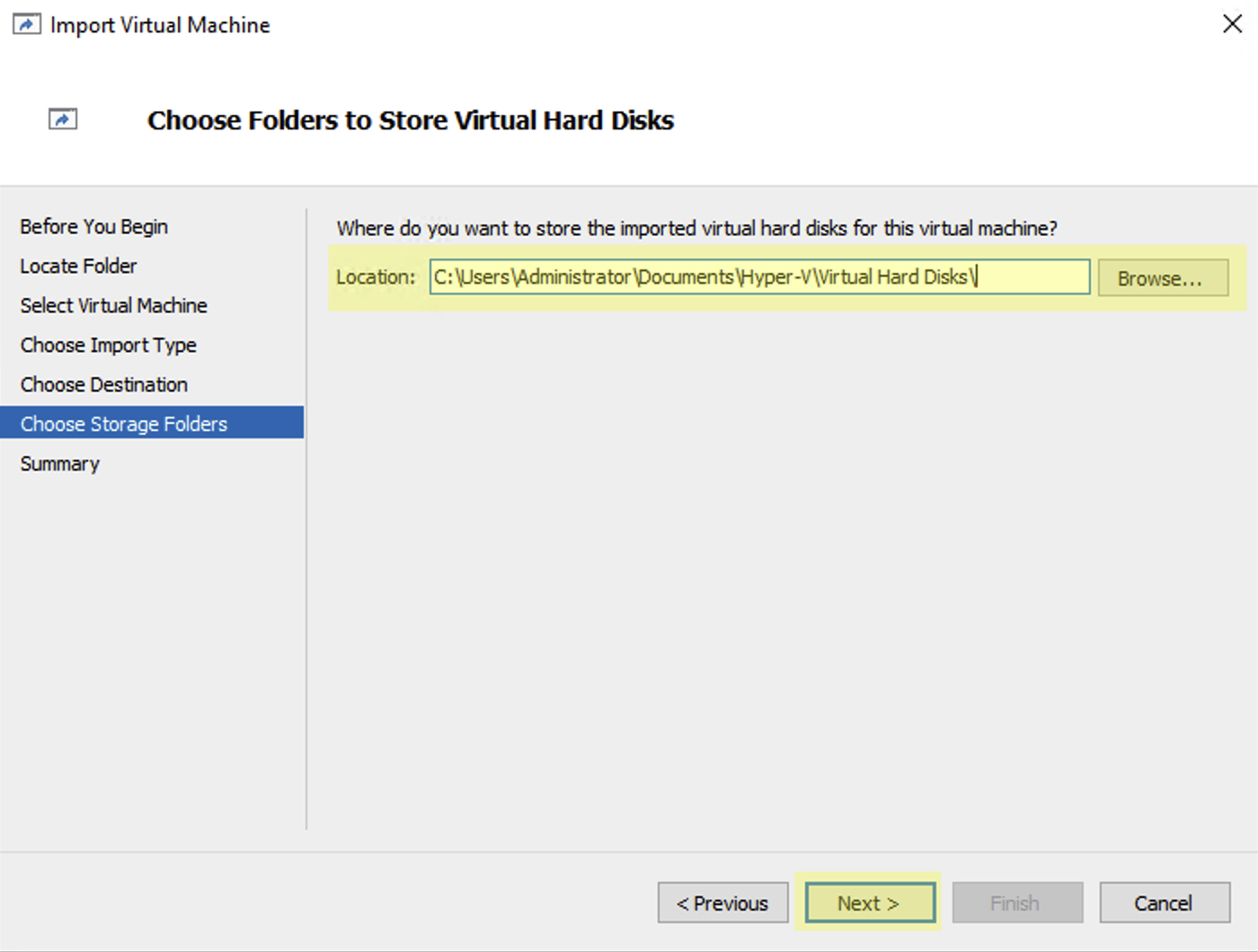
Select the desired VM storage location for the VM disk
10) Review settings again and finish the wizard
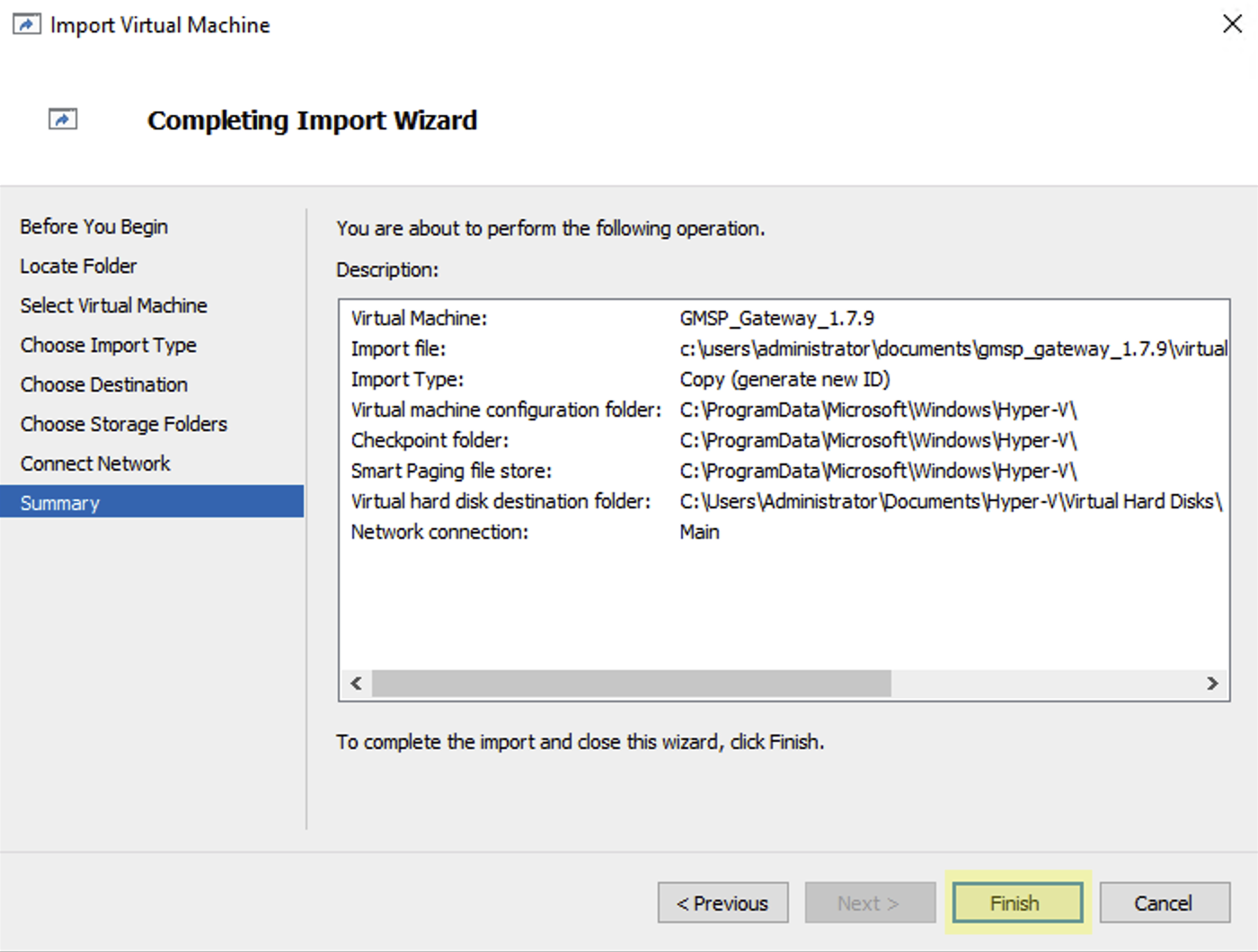
Review settings and create VM
11) The VM can now be started with a right-click and “Start”
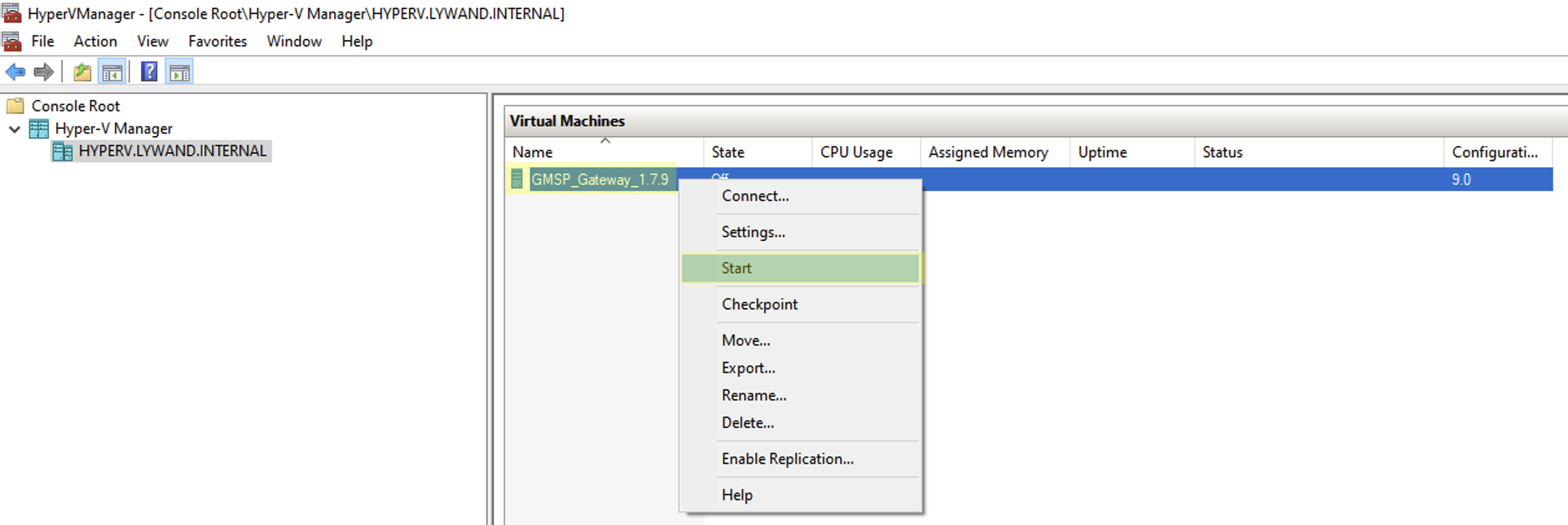
Start VM
12) The console can be opened with a right-click and “Connect…”
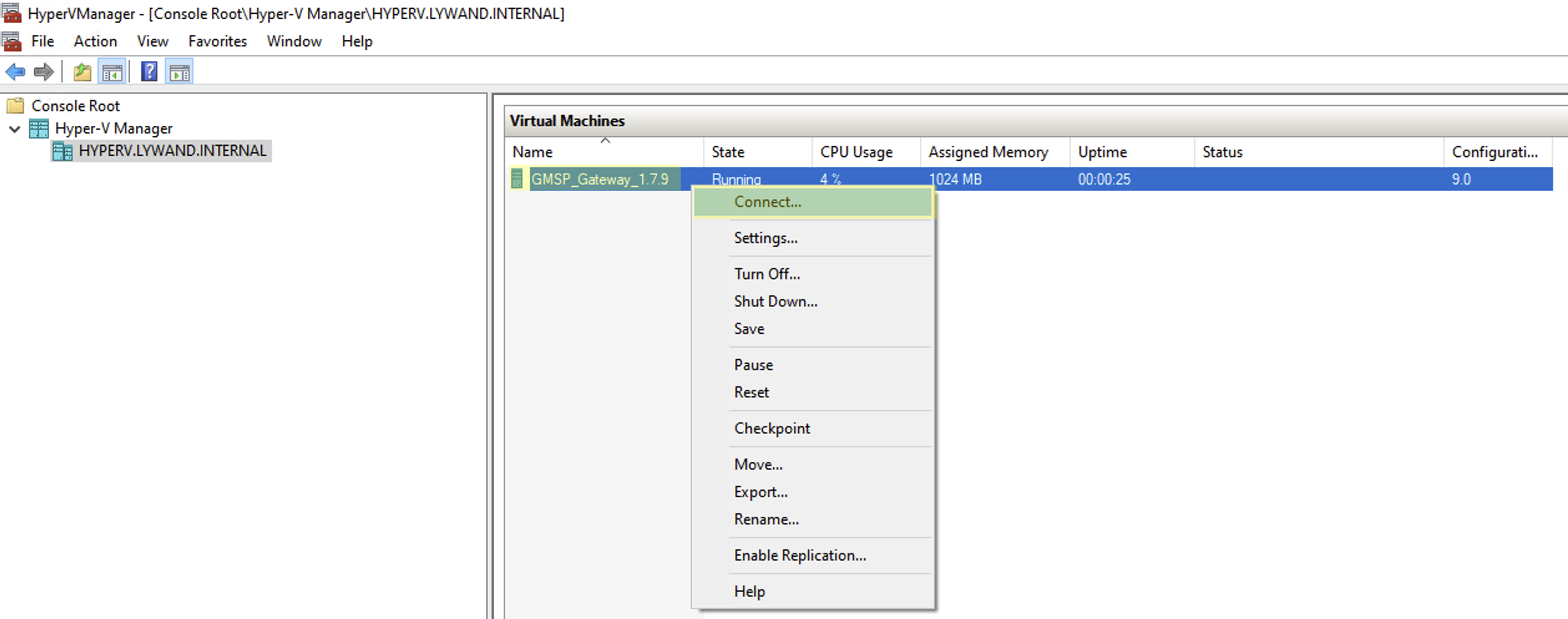
Open console