The following sections cover common error cases related to the Network Check and the gateway.
Initial situation:
The gateway VM has been configured and is shown as connected. If needed, the gateway’s default CLI password can be changed. If this option is selected in the menu, the old and the new password are requested.
Problem case:
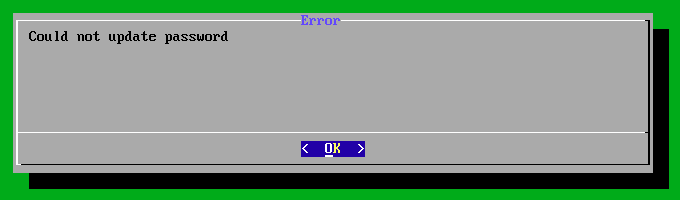
The password can’t be changed successfully. The error message “Could not update password” appears.
Possible cause:
In most cases, the reason for this error message is that the new password doesn’t meet the required password policies. This often happens when a password that’s too simple is chosen. To avoid this error, we recommend using a password at least 10 characters long with special characters.
Initial situation:
The gateway is shown as connected and the scan can be started.
Problem case:
The network check stops right after starting. In some cases, the gateway is then shown as offline. Only after a restart it is shown as connected again.
Possible cause #1:
Missing firewall approvals. The gateway must be able to reach external addresses. For the network check to work properly, the following approvals are needed:
Both the scanner IP address and the IP address of the gateway must be able to fully reach the target devices in the internal network. All ports of these devices must be reachable.
In addition, the IP address of the gateway and the IP address of the scanner must be able to reach the following external addresses:
443/tcp outgoing to 45.135.106.140
443/tcp outgoing to https://gateway.lywand.com (217.72.202.36)
443/tcp outgoing to https://gpublic.azurecr.io (update service)

Possible cause #2:
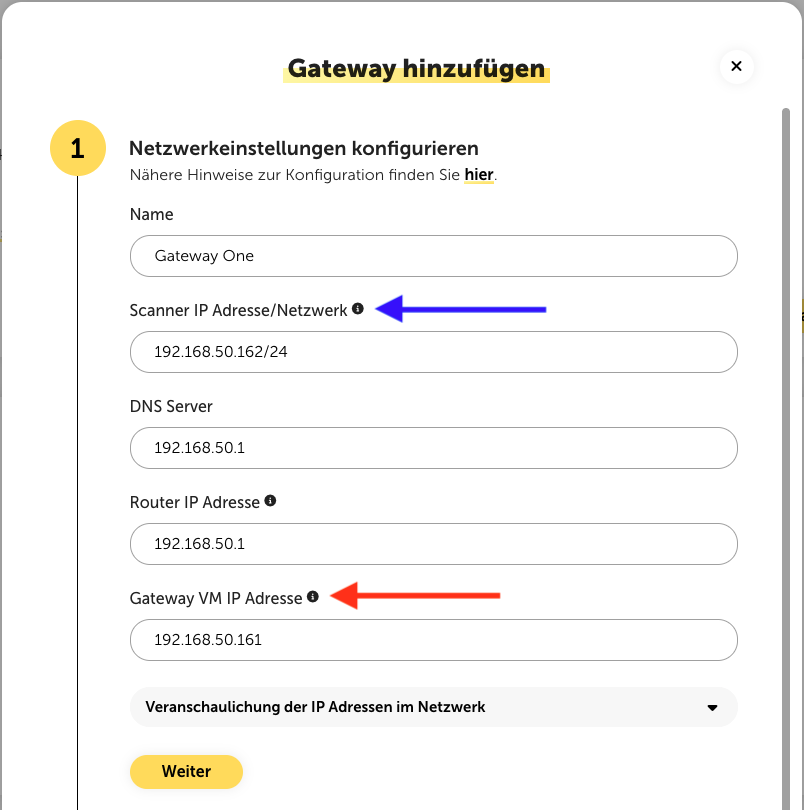
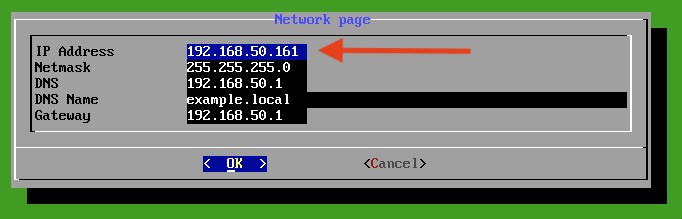
Swapped IP addresses. This error case can also occur if, when configuring the gateway VM, you accidentally enter the IP address of the scanner instead of the IP address of the gateway. (See the red arrows in the screenshots below.)
Initial situation:
The scan could be started and was completed. In the infrastructure table of the internal network targets, a timestamp is visible in the “Last checked” column.
Problem case:
The scan didn’t return any results. In the Check Insights, the scanned network devices are listed, but no vulnerabilities are shown for them.

Possible cause #1:
This error case indicates that the targets in the test scope can’t be reached by the scanner. As a result, the necessary firewall rules should be checked:
The IP address of the scanner must be able to fully reach the devices to be checked in the internal network. All ports of these devices must be reachable.
Possible cause #2:
The IP address of the scanner is being used by another system in the same network. When configuring, you really need to assign the scanner an IP address that is still free in the network.
Initial situation & problem case:
Scans are basically completed and vulnerabilities are found. However, the number of vulnerabilities found fluctuates between the network checks carried out (without any vulnerabilities being fixed).
Possible cause #1:
The IP address of the scanner is being used by another system in the same network. When configuring, you really need to assign the scanner an IP address that is still free in the network.
Possible cause #2:
The scanner is blocked by a Web Application Firewall (WAF) or something similar during the check. This can also only be the case for a short time and doesn’t have to affect all targets. This can cause timing issues that then affect the scan results.
Initial situation:
The scan could be started and is “in progress”.
Problem case:
Depending on the scope of the check and the load on the scan cluster, it can take several hours for a scan to complete. However, if the network check does not finish for a longer period of time or gets stuck at the same percentage of progress, this can indicate a problem.
Possible cause #1:
If the network check takes an unusually long time, this can indicate an overload of the Greenbone scan cluster. In this case, the duration of the scan increases. However, the scan will be completed as soon as the load issue is resolved. Aborting the scan is unlikely in this case, but can’t be ruled out.
Possible cause #2:
This error case can also indicate that the targets within the scan scope are not reachable by the scanner. Consequently, the necessary firewall rules should be checked:
The IP address of the scanner must be able to fully reach the devices to be checked in the internal network. All ports of these devices must be reachable.